
Nissan Rogue (T33) 2021-Present Owner’s Manual & User Guide: Intelligent Around View Monitor system operation
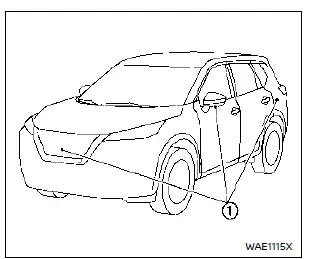
The system uses cameras positioned on the grille, under the outside mirrors, and above the rear license plate. When the ignition is ON, pressing the CAMERA button or shifting into R activates the Intelligent Around View Monitor.
If the CAMERA button is pressed while the shift lever is not in R, the display returns to the previous screen after 3 minutes (Rock Creek OFF-ROAD mode disables this timeout).
Available views (models without 3D view)
WARNING
- Distance guide lines and width guide lines are reference only. They may vary based on load, fuel level, incline and road conditions.
- Tire size changes affect the accuracy of predictive course lines and bird’s-eye calibration.
- Uphill: objects appear farther than they are. Downhill: objects appear closer.
- The rear view image is reversed compared to mirrors.
- A wide-angle lens distorts distance perception.
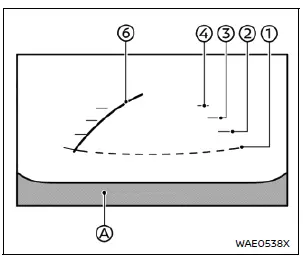
Front view
Rear view
Front and rear view: Distance guide lines indicate how far objects are from the bumper.
- Red — approx. 1.5 ft (0.5 m)
- Yellow — approx. 3 ft (1 m)
- Green — approx. 7 ft (2 m)
- Green (if equipped) — approx. 10 ft (3 m)
Predictive course lines: Move as the steering wheel turns, showing the projected path of the Nissan Rogue.
Front view is disabled above:
- 6 MPH (10 km/h)
- 12 MPH (20 km/h) in Rock Creek OFF-ROAD mode
NOTE:
- If the steering wheel turns less than ~90°, both predictive lines appear. Turning more than ~90° displays the line on the opposite side only.
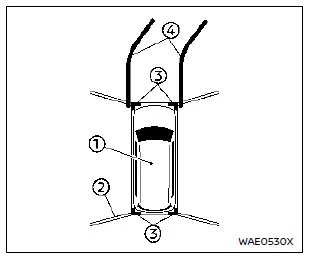
Bird’s-eye view: Displays a composite overhead image. Distances differ from real distances due to camera processing.
- Vehicle icon shows the position of the Nissan Rogue.
- Black zones represent non-viewable stitched areas.
- Yellow highlight appears briefly when the system initializes.
- Amber markers show unavailable sonar zones.
WARNING
- Objects in bird’s-eye view may appear farther.
- Tall objects may be distorted or not appear at camera seams.
- Objects above the camera height are not visible.
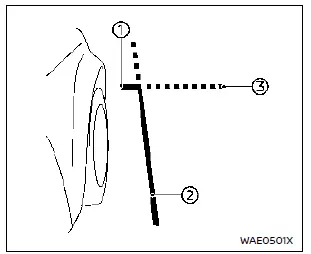
Front-side view: Displays guiding lines that show the approximate width and the leading edge of the vehicle for precision positioning near curbs.
The front-of-vehicle line 1 shows the forward boundary of the Nissan Rogue, helping the driver judge clearance during tight parking maneuvers.
The side-of-vehicle line 2 represents the full vehicle width, including the outside mirrors, allowing better spatial awareness when navigating close obstacles.
The extensions 3 of both the front 1 and the side 2 lines appear as green dotted guides to improve precision when aligning the vehicle.
For Rock Creek models: both the driver's and front passenger's side views are shown when OFF-ROAD mode is selected using the Drive Mode Selector. When OFF-ROAD mode is not enabled, only the front passenger-side view is displayed.
CAUTION
The illuminated turn signal may visually resemble the side-of-vehicle line. This is normal and not a system malfunction.
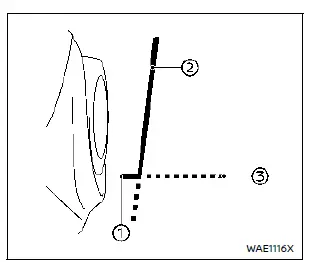
Front passenger's side
Rear-side view (Rock Creek models):
Guiding lines:
These lines indicate the approximate width and rear boundary of the vehicle (both driver and passenger side) when displayed on the monitor.
The rear-of-vehicle line 1 marks the rear-most portion of the Nissan Rogue.
The side-of-vehicle line 2 indicates vehicle width including the mirrors.
The green dotted extensions 3 of both the rear 1 and side 2 lines provide extended guidance for improved rear obstacle detection.
This rear-side view is available only when OFF-ROAD mode is selected.
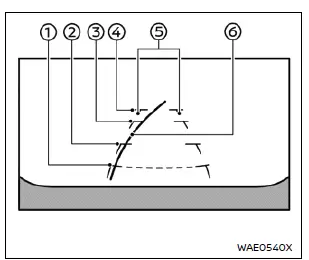
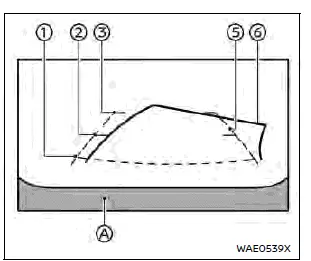
Front-wide view
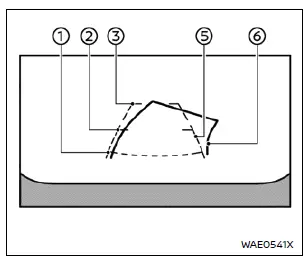
Rear-wide view
Front-wide / rear-wide view:
While standard front/rear views show the area directly around the bumper, the wide-angle mode expands visibility across the entire screen, reducing blind spots on both sides — especially useful for detecting approaching vehicles, pedestrians, or obstacles.
Distance guide lines 1–4:
These indicate approximate distances from the vehicle body.
- Red line 1: ~1.5 ft (0.5 m)
- Yellow line 2: ~3 ft (1 m)
- Green line 3: ~7 ft (2 m)
- Green line 4 (front-wide only): ~10 ft (3 m)
Vehicle width guide lines 5:
Indicate the approximate body width of the vehicle.
Predictive course lines 6:
Show the projected steering-based path of the vehicle. These lines adjust as the steering wheel turns. In rear-wide view, predictive lines are hidden when the steering wheel is straight.
The front-wide view is automatically disabled at the following speeds:
- 6 MPH (10 km/h) or higher (normal models and Rock Creek without OFF-ROAD mode)
- 12 MPH (20 km/h) or higher (Rock Creek in OFF-ROAD mode)
NOTE:
- With the front-wide view active, turning the steering wheel up to ~90° displays predictive lines on both sides. Turning past ~90° displays a predictive line only on the opposite side.
Other materials:
Nettoyage extérieur
Informations de base
Afin de conserver durablement l’aspect esthétique et la valeur du Nissan Rogue, il est essentiel d’assurer un entretien extérieur régulier et approprié, adapté aux conditions climatiques et environnementales.
Dans le but de protéger efficacement les surfaces peinte ...
Dtc/circuit Diagnosis. B2046-42 Eeprom
DTC Description
DTC DETECTION LOGIC DTC No.
CONSULT screen items
(Trouble diagnosis content) DTC Detection Condition
B2046-42
EEPROM
(Electrically Erasable Programmable Read-Only Memory)
Diagnosis condition
Ignition switch ON
Signal (terminal)
—
Threshold
EEPROM ...
Power Supply and Ground Circuit
Combination Meter
Diagnosis Procedure
CHECK FUSES
Check that the following fuses are not blown:
Unit Location Fuse No. Capacity
Combination meter
Fuse block (J/B)
29
5A
6
5A
Is the fuse blown?
YES>>
Replace the blown fuse after repairing the affected circ ...