
Nissan Rogue (T33) 2021-Present Owner’s Manual & User Guide: RearView Monitor
Basic information
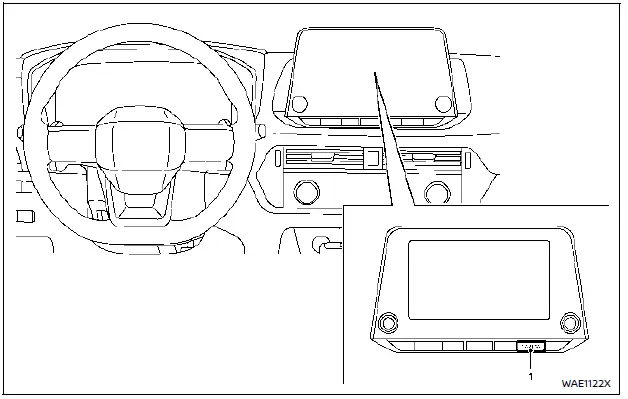
- CAMERA button
WARNING
- Failure to follow the warnings and usage instructions for the RearView Monitor in your Nissan Rogue can result in serious injury or death.
- The RearView Monitor is a driver-assist tool, not a replacement for safe driving habits. Always turn your head, check mirrors and surroundings, and reverse slowly.
- The system helps identify large stationary objects directly behind the vehicle to prevent damage.
- Guide lines on the display should be used only as a visual reference on level paved surfaces.
- The distance shown on the monitor may differ from the actual distance to objects.
CAUTION
Do not scratch or apply excessive pressure to the camera lens when removing dirt, snow or debris.
The RearView Monitor system automatically activates and displays a rear view when the shift lever is placed in the R (Reverse) position on the Nissan Rogue.
The radio and audio system continue to operate normally while the RearView Monitor is displayed.
RearView Monitor system operation
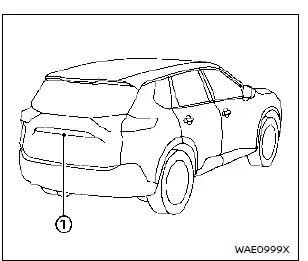
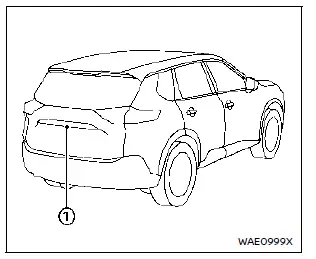
On the Nissan Rogue, the RearView Monitor displays the rear camera view using the camera 1 mounted just above the license plate. This system activates automatically when the ignition is ON and the shift lever is moved to the R (Reverse) position.
How to read the displayed lines
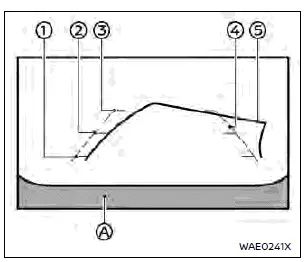
The display provides guiding lines that help judge distance and vehicle width relative to the bumper line A. These visual aids improve reversing accuracy and safety on the Nissan Rogue.
Distance guide lines:
- Red line 1: approximately 1.5 ft (0.5 m)
- Yellow line 2: approximately 3 ft (1 m)
- Green line 3: approximately 7 ft (2 m)
Vehicle width guide lines 4:
Show the approximate width of the Nissan Rogue when backing up.
Predictive course lines 5:
These lines represent the projected path of the vehicle based on steering wheel position. They appear only when the steering wheel is turned and adjust dynamically with the steering input.
Note that the predictive course lines and vehicle width lines appear wider than the actual dimensions of the vehicle.
Difference between predictive and actual distances
Basic information
The guide lines displayed on the monitor are approximate visual references. Terrain changes such as slopes or objects that extend upward or outward can affect perceived distance. Always visually confirm surroundings when reversing the Nissan Rogue.
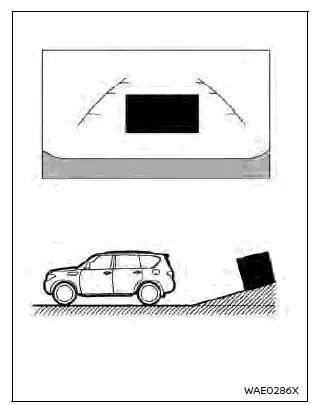
Backing up on a steep uphill
When reversing uphill, the guide lines appear closer than the actual distance, meaning objects are farther away than they look on the display.
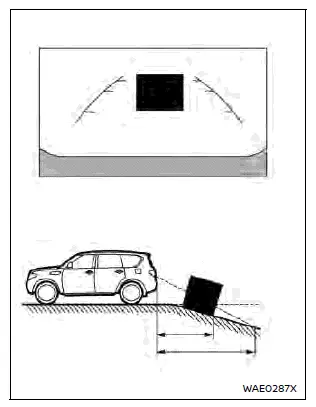
Backing up on a steep downhill
When reversing downhill, the guide lines appear farther away than actual distances, meaning objects are closer than they appear on the monitor.
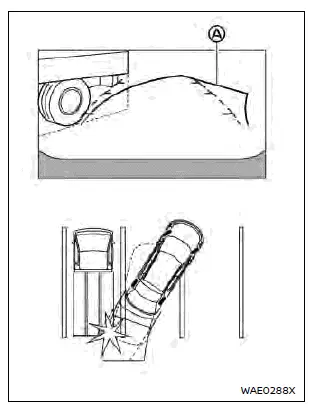
Backing up near a projecting object
Predictive course lines A may not touch an object in the display, but if it extends into the vehicle’s actual reversing path, the Nissan Rogue could still collide with it.
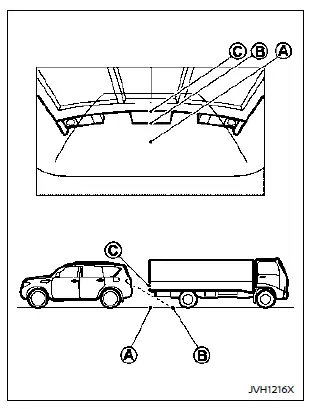
Backing up behind a projecting object
The screen may show position C as farther away than B, but in reality position C is aligned with position A. If an object extends into the reversing path, the vehicle may strike it despite misleading screen depth perception.
How to park with predictive course lines
WARNING
- If the tires on your Nissan Rogue are replaced with different sizes, the predictive course lines may be displayed incorrectly.
- On snowy or slippery surfaces, actual vehicle movement may differ from what the predictive course lines show.
- If the battery is disconnected or discharged, predictive course line accuracy may be affected. To recalibrate:
- Turn the steering wheel from lock to lock with the engine running.
- Drive straight for more than 5 minutes.
- Turning the steering wheel with the ignition ON may temporarily distort predictive course line display.
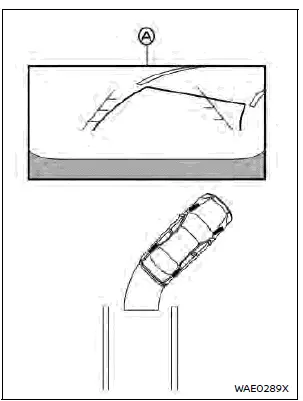
1. Visually confirm the parking space is safe before parking the Nissan Rogue.
2. Move the shift lever to R (Reverse). The rear view will appear on the display screen A.
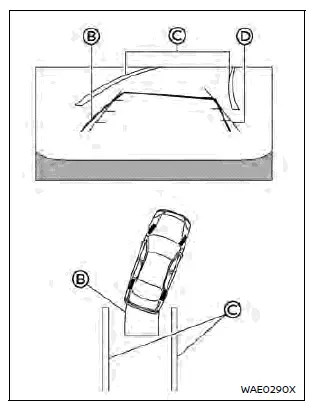
3. Slowly back up and adjust steering so predictive course lines B align with the parking space C.
4. Maneuver the steering wheel until the vehicle width guide lines D become parallel to the parking space C.
5. Once fully positioned, shift to P (Park) and apply the parking brake.
Adjusting the screen
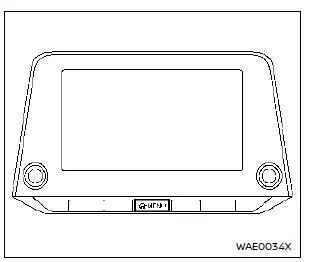
1. Push the MENU button.
2. Select "Settings" → "Camera".
3. Touch "Display Settings".
4. Adjust "Brightness", "Contrast", "Tint", "Color", or "Black Level".
5. Use the "+" or "-" touch controls to fine-tune the display.
NOTE:
Adjust display settings only while the Nissan Rogue is parked with the parking brake applied.
How to turn predictive course lines ON/OFF
1. Push MENU.
2. Select "Settings" → "Camera".
3. Toggle "Predictive Course Lines" ON or OFF.
When in R (Reverse), pressing the CAMERA button also toggles predictive course lines.
RearView Monitor system limitations
WARNING
Be aware of system limitations when reversing the Nissan Rogue—improper use may result in injury or vehicle damage.
- Blind spots still exist—the system cannot show everything.
- Areas under the bumper or near the corners are not visible.
- Wide-angle lenses distort distance perception.
- Objects appear reversed compared to mirrors.
- Displayed lines are affected by load, fuel level, road condition and slope.
- Ensure liftgate is fully closed.
- Keep the rear camera clean and unobstructed.
- Avoid high-pressure spray around the camera.
- Do not strike or damage the camera unit.
The following operating characteristics are normal and do not indicate a malfunction:
- Temperature extremes may reduce clarity.
- Strong direct light may obscure objects.
- Vertical reflection lines may appear.
- Screen flicker may occur under fluorescent lighting.
- Displayed colors may differ slightly from reality.
- Low light reduces visibility.
- Short delay may occur when switching views.
- Snow, dirt or rain on the camera affects visibility—clean the lens.
- Wax residue can blur the camera image.
System maintenance
CAUTION
- Avoid using alcohol, benzine or thinner—they can discolor the camera.
- Do not physically damage the camera; image quality will degrade.
If dirt or moisture accumulates on the camera 1, clean it using a cloth dampened with mild diluted cleaner, then wipe dry. Clear visibility ensures the RearView Monitor works properly on your Nissan Rogue.
Other materials:
Fuel Injector Relay
Component Inspection
CHECK FUEL INJECTOR RELAY
Turn ignition switch OFF.
Remove fuel injector relay. Refer to Component Parts Location.
Check the continuity between fuel injector relay terminals as per the following conditions.
Fuel injector relay Condition Continuity
+ −
...
Engine compartment check locations
KR15DDT engine model
Engine coolant reservoir
Engine oil dipstick
Engine oil filler cap
Brake fluid reservoir
Battery
Fuse/fusible link box
Intercooler coolant reservoir
Window washer fluid reservoir
Drive belt
Air cleaner
NOTE:
Your Nissan Rogue may not be equipped with an engine ...
Préparation au test d'inspection/d'entretien
AVERTISSEMENT
Un véhicule Nissan Rogue équipé d’une transmission intégrale ne doit jamais être soumis à un essai sur dynamomètre à deux roues, comme ceux utilisés dans certains États ou provinces pour les tests d’émissions. Assurez-vous que le personnel chargé du test est informé ...