
Nissan Rogue (T33) 2021-Present Service Manual: Basic Inspection :: Tire Pressure Sensor Id Registration
Description
This procedure must be performed.
-
After replacement of a tire pressure sensor or BCM.
-
After replacement of tire or road wheel.
 NOTE:
NOTE:
ID registration is unnecessary if there are no change in the positions of each wheels (tire pressure sensors) before wheel removal and after wheel installation.
-
After performing tire rotation.
Work Procedure
TPMS ID registration can be performed using one of the following procedures:
-
Transmitter Activation tool [KV48105501 [KV48105501 (NI-45295-A)]] using CONSULT (preferred method)
-
Signal Tech II tool [– (NI-50190)] using CONSULT (preferred method)
-
Signal Tech II tool [– (NI-50190)] without CONSULT
-
CONSULT only
TPMS REGISTRATION WITH TIRE PRESSURE SENSOR ACTIVATION TOOL [KV48105501 (NI-45295-A)]
 CONSULT
CAUTION:
Always use CONSULT when tire pressure sensor ID registration. (It cannot be ID registration other than with CONSULT.)
-
Ignition switch ON.
-
Select “Work support� in "BCM [AIR PRESSURE MONITOR]". Then, select “ID registration�.
-
Select “Start� on “ID registration� screen.
-
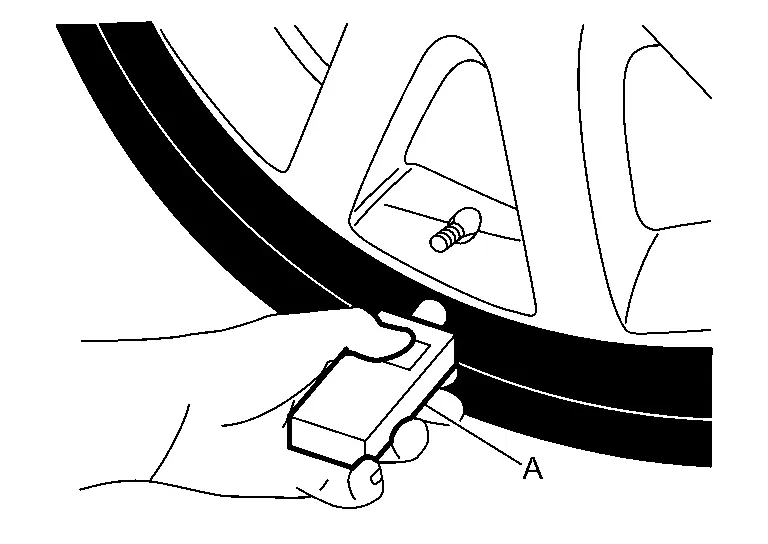
Hold the tire pressure sensor activation tool [KV48105501 (NI-45295-A)] (A) against the side of the left front tire, near the valve.
-
With the tool held at a 0 to 15 degree angle to the tire, press and hold the tire pressure sensor activation tool button until the indicator lamp turns OFF (approximately 5 seconds).
-
Repeat steps 4 and 5 for the remaining tires in this order: right front, right rear and left rear.
-
When ID registration is complete, check the following pattern at each wheel:
Sequence ID registration position Turn signal lamp CONSULT 1 Front LH 2 blinks “Yet (red)�
↓
“Done (green)�2 Front RH 3 Rear RH 4 Rear LH -
After the ID registration procedure for all wheels is complete, press “End� on the CONSULT to finish ID registration.
TPMS REGISTRATION WITH SIGNAL TECH II TOOL (NI-50190)
NOTE:
The Signal Tech II must be updated with software version 1.1.48 or newer in order to perform the below procedures. The Signal Tech II software updates can only be downloaded from a CONSULT unit with ASIST. Other versions of ASIST will not show the updates.
CONSULT
-
Adjust the tire pressure for all tires to the recommended value. Refer to Tire Air Pressure.
-
Ignition switch ON.
-
Select “Work support� in "BCM [AIR PRESSURE MONITOR]". Then, select “ID registration.�
-
Select “Start� on “ID registration� screen.
-
Turn on the Signal Tech II tool (NI-50190).
-
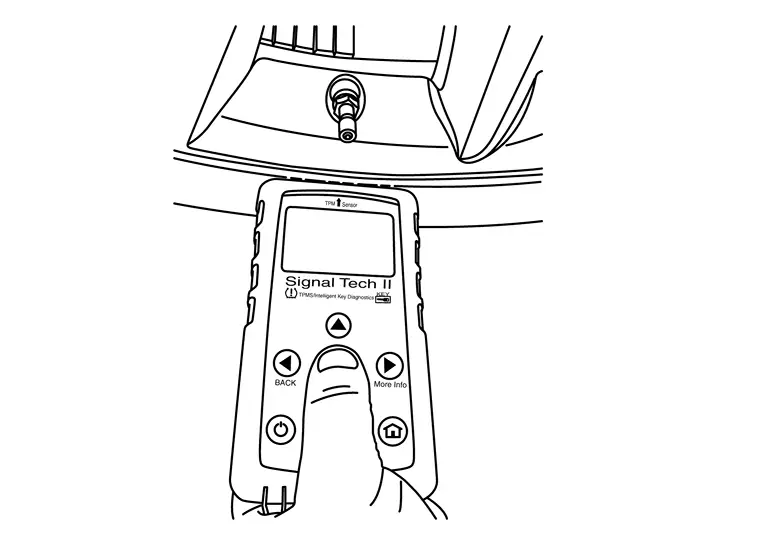
Hold the Signal Tech II against the side of the left front tire, near the valve.
-
With the tool held at a 0 to 15 degree angle to the tire, select “Activate Sensor� from the main menu, then press and release the “OK� button to activate the sensor. Once the sensor is activated, the Nissan Ariya vehicle parking lamps will flash and the sensor ID will appear on the CONSULT screen.
-
Repeat steps 6 and 7 for the remaining tires in this order: right front, right rear and left rear.
-
When ID registration is complete, check the following pattern at each wheel:
Sequence ID registration position Turn signal lamp CONSULT 1 Front LH 2 blinks “Yet (red)�
↓
“Done (green)�2 Front RH 3 Rear RH 4 Rear LH -
Once all sensors have been activated, select “End� on the CONSULT to finish ID registration.
Other materials:
System Description. System
System Description
SYSTEM DIAGRAMINPUT/OUTPUT SIGNAL CHART Switch Input signal to BCM BCM function Actuator
Rear window defogger switch
Defogger switch signal
Rear window defogger control
Rear window defogger
OPERATION DESCRIPTION
Turn rear window defogger switch ON when the e ...
Dtc/circuit Diagnosis. B2c40-04 Power Window Main Switch
DTC Description
NOTE:
When the ignition switch is placed ON, the DTC may be detected. If it
has been detected due to previous error/operation, erase the history
once and check if the DTC is detected again.
When holding down the power window lock switch for 30 seconds or
more, the po ...
U2252 Can Comm Circuit
DTC Description
DTC DETECTION LOGIC DTC
CONSULT screen terms
(Trouble diagnosis content)
DTC detection condition
U2252
83
CAN comm err (ADAS control unit)
[CAN comm err (ADAS control unit)]
Diagnosis condition
Ignition switch ON
Signal (terminal)
CAN communication ...