
Nissan Rogue (T33) 2021-Present Owner’s Manual & User Guide: Trip computer
Basic information
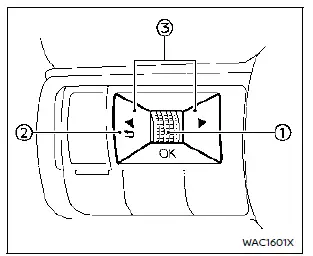
The trip computer switches are located on the left side of the steering wheel, allowing easy access while driving the Nissan Rogue.
- Scroll dial – used to move through menu items and select functions within the vehicle information display; it supports up/down navigation and push-to-select.
-
 – return to the previous menu
 -
 – switch between different screens such as trip or fuel economy
The images shown may vary depending on the model version.
Home
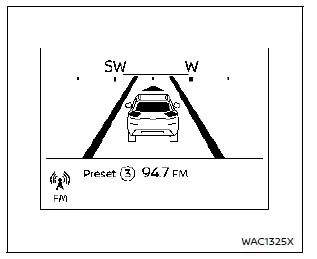
The Home mode displays key information useful for everyday driving.
- Vehicle speed
- Navigation (if equipped)
- Audio
Vehicle Speed (if so equipped)
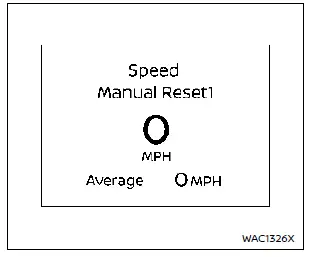
The Vehicle Speed mode shows the current speed and average speed recorded since the last reset. It offers three operating modes.
You can switch between Manual Reset1, Manual Reset2, or Auto Refuel using the scroll dial.
Manual Reset1 and Manual Reset2 can be cleared manually when needed.
Auto Refuel resets automatically each time the vehicle is refueled.
Drive Computer
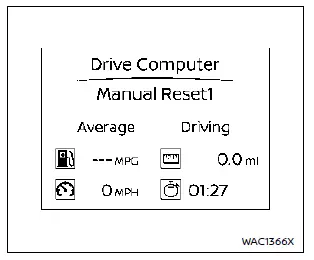
Average fuel consumption:
Shows the average fuel consumption since the previous reset.
Average speed:
Displays the average speed since the last reset.
Trip odometer:
Indicates the total distance driven since resetting the counter.
Elapsed time:
Shows the time passed since the previous reset.
The Drive Computer also includes Manual Reset1, Manual Reset2, and Auto Refuel modes, all selectable with the scroll dial.
Manual Reset modes can be adjusted manually, while Auto Refuel resets automatically after adding fuel.
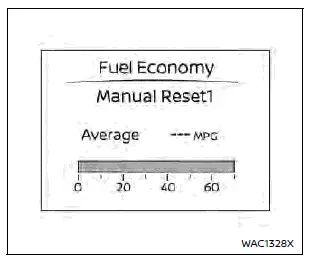
Fuel Economy display
Current fuel consumption:
Displays real-time fuel usage to help improve driving efficiency.
Average fuel consumption:
Shows the average consumption since the last reset.
The Fuel Economy display offers the same three modes: Manual Reset1, Manual Reset2, and Auto Refuel, which can be selected with the scroll dial.
Manual Reset options can be cleared manually for more accurate tracking.
Auto Refuel will reset automatically each time the vehicle is refueled, ensuring convenient tracking for Nissan Rogue owners.
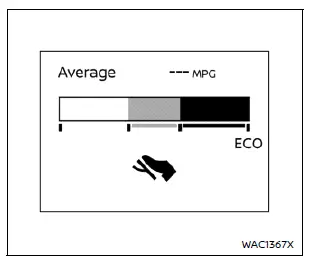
ECO Pedal Guide
When ECO mode is activated, the ECO Pedal Guide provides feedback to help improve fuel efficiency during everyday Nissan Rogue driving.
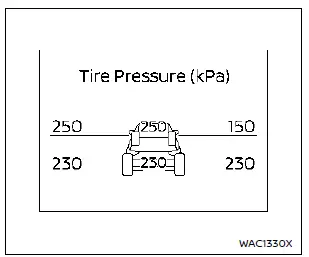
Tire Pressures
The tire pressure mode displays the current pressure of all four tires as the vehicle is driven.
With the "Tire Pres ECO advice" function enabled, the system displays "Check Tire Pressures for Best Fuel Economy" when pressure begins to drop, helping keep the Nissan Rogue operating efficiently.
When the Tire Pressure Low – Add Air warning appears, pressing the scroll dial switches the display to detailed tire pressure information.
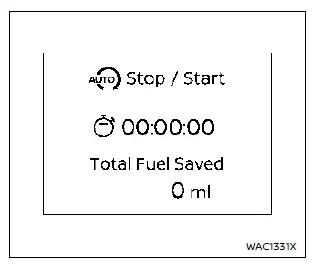
Idling Stop System
The Idling Stop System screen shows how much fuel has been saved while this feature is active during Nissan Rogue city or highway driving.
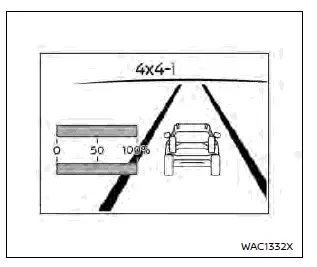
Intelligent 4x4 torque distribution display (if so equipped)
This function shows how transmission torque is distributed between the front and rear wheels, giving Nissan Rogue drivers clear insight into 4x4 performance.
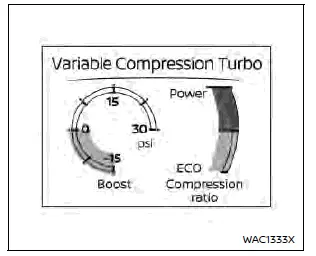
Variable Compression Turbo
The Variable Compression Turbo mode displays information about how the turbo system adjusts compression for optimal performance.
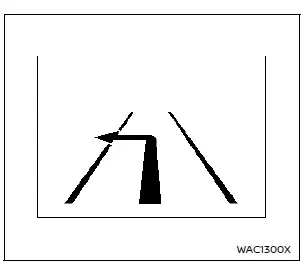
Navigation (if so equipped)
When a route is active in the navigation system, this screen shows guidance and route details to support smooth Nissan Rogue travel.
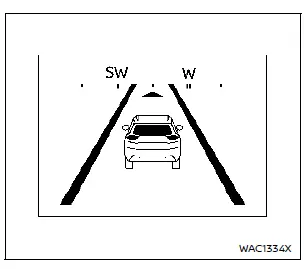
Compass (if so equipped)
This display indicates the current heading direction of the vehicle.
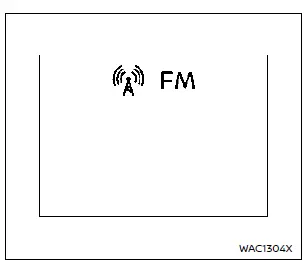
Audio
The audio mode presents information about the current audio source, playback status, and other media details.
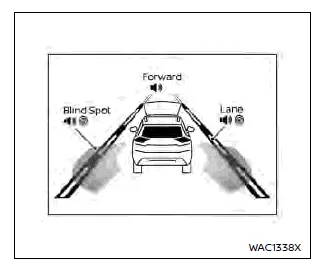
Driver Assistance
The Driver Assistance mode shows the operating status of the vehicle’s available safety and assistance technologies.
- Forward:
- Automatic Emergency Braking (AEB) with Pedestrian Detection
- Intelligent Forward Collision Warning (I-FCW)
- Lane:
- Lane Departure Warning (LDW)
- Intelligent Lane Intervention (I-LI) (if equipped)
- Blind Spot:
- Blind Spot Warning (BSW)
- Intelligent Blind Spot Intervention (IBSI) (if equipped)
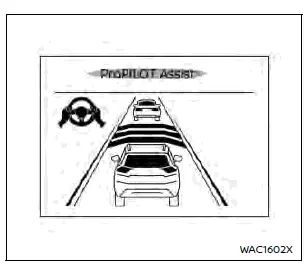
Example
ProPILOT Assist (if so equipped)
The ProPILOT Assist mode displays the operating conditions of several driver-assist features designed to enhance comfort and control while driving the Nissan Rogue.
- Intelligent Cruise Control (ICC)
- Steering Assist
This screen also appears automatically when ProPILOT Assist is activated.
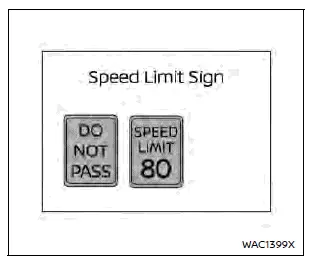
Traffic Sign Recognition (if so equipped)
The Traffic Sign Recognition (TSR) system provides updated information about the most recently detected speed limit, helping Nissan Rogue drivers stay aware of posted road signs.
Other materials:
U2259 Can Comm Circuit
DTC Description
DTC DETECTION LOGIC DTC
CONSULT screen terms
(Trouble diagnosis content)
DTC detection condition
U2259
87
CAN comm err (steering control unit)
[CAN comm err (steering control unit)]
Diagnosis condition
Ignition switch ON
Signal (terminal)
CAN commu ...
P0443 Evap Canister Purge Volume Control Solenoid Valve
DTC Description
DTC DETECTION LOGIC DTC
CONSULT screen terms
(Trouble diagnosis content)
DTC detection condition
P0443
00
PURG VOLUME CONT/V
(EVAP system purge control valve "A" circuit)
A
Diagnosis condition
Engine cold start
Signal (terminal)
—
Thresho ...
Ordinateur de bord du Nissan Rogue
Informations de base et commandes
Pour une ergonomie optimale, les commandes intuitives de l'ordinateur de bord de votre Nissan Rogue sont judicieusement situées sur le côté gauche du volant. Elles permettent de piloter l'ensemble des fonctionnalités sans quitter la route des yeux.
C ...